For agencies📋 Scheduling & Dispatch
Use the dispatch board
Fill, reassign, and release jobs by dragging chips between the Unassigned row and interpreter rows on the day grid.
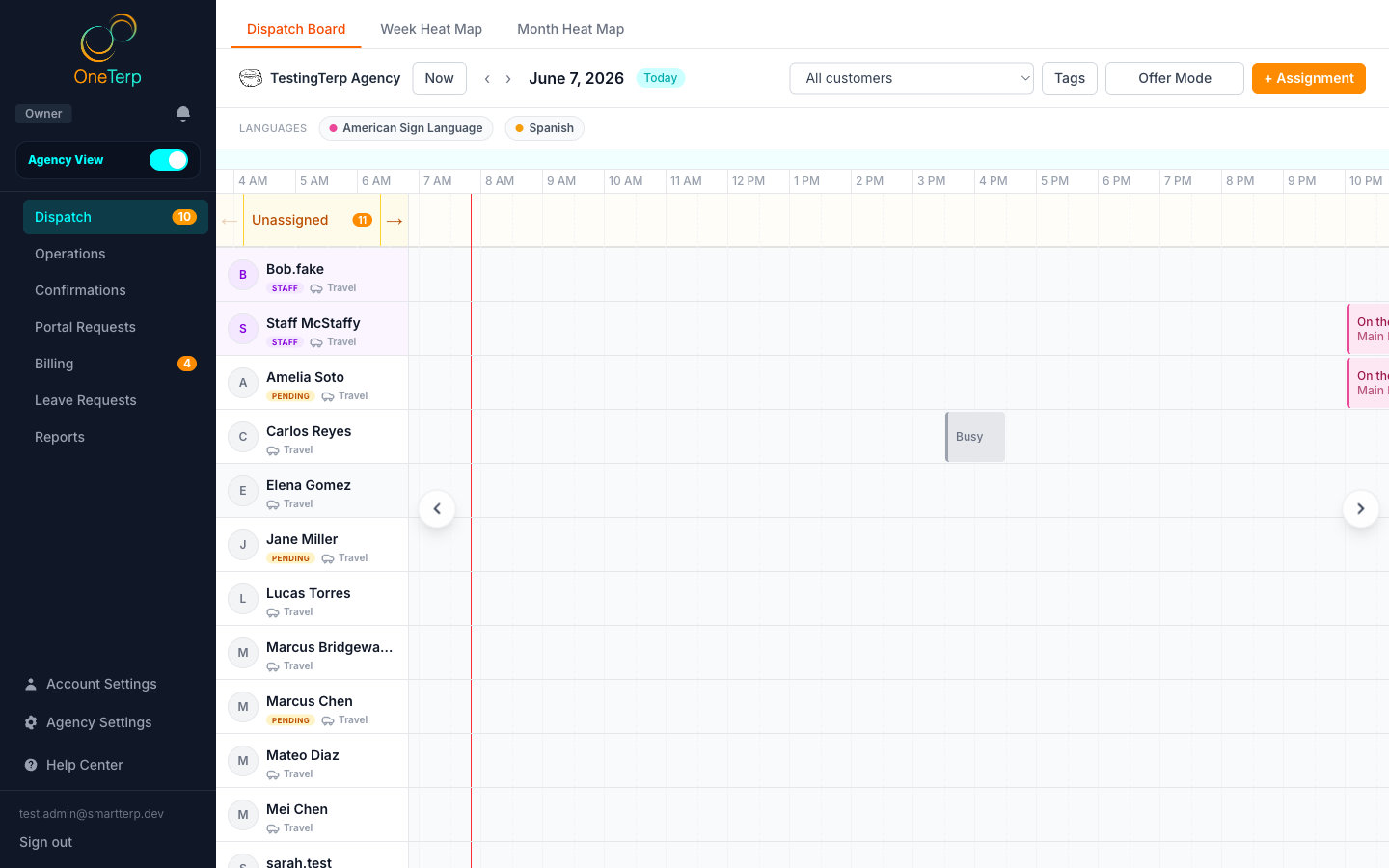
The dispatch board is a day-grid with one row per interpreter plus a frozen "Unassigned" row at the top. Drag job chips onto interpreters to fill jobs and drag them back to release.
Step by step
- 1Open the dispatch board for the day you want to work.
- 2Find the job chip in the Unassigned row (or on whichever interpreter currently holds it).
- 3Drag the chip onto the interpreter row you want to fill it, release to assign.
- 4To move a job to a different interpreter, drag its chip from one row to another; the system clears the old assignment first, then fills the new one.
- 5To release a job, drag its chip back onto the Unassigned row.
- 6Watch the row colors while dragging: red means a hard conflict, blue means a top best-fit, emerald means available, and dimmed means the interpreter doesn't speak the language.
- 7Click any chip to open its detail panel with edit, duplicate, split, and offer options.
- 8Use the "Now" button to jump to today and center the current time. Opening a job from a notification, from Week View, from search, or from the unfilled worklist lands the board on that job's time rather than at midnight.
- 9Use the "Tags" button above the board to narrow the day: the Interpreters section filters the people rows, the Assignments section filters the jobs, and each has an Any or All toggle.
Screenshots
Tips
- Dispatch is where you land when you sign in, because it sits at the top of your sidebar. To start somewhere else, such as your agency Home, drag that page to the top by its handle. Your order is saved to your account.
- Assigning a job to someone whose profile doesn't list that language asks you to confirm and give a reason, which helps when you know they cover it but their profile is out of date. Placeholder interpreters skip the check entirely.
- Dropping someone marked as an intern asks whether it's a normal assignment or a shadow slot: an intern rides along to observe, doesn't fill the slot (it stays open for a real interpreter), and is never billed or paid.
- The same interpreter can't take two different slots of the same team job, but they CAN return to another segment of the same split slot (see Split a job between interpreters).
- Colored bands behind a row mark working hours you can schedule into: teal = a W-2 staff shift, violet = a purchased-time contractor's bought block.
- The board updates live as other coordinators or interpreters make changes, so you're always seeing the current state.
- Drag a row's grip handle to reorder interpreters. Your layout is saved to your account for each agency, so it follows you to another computer or your phone.
- Click the calendar icon beside an interpreter's photo to open their Day Schedule: every job, their scheduled shift, time off, agency events, unavailable times, and time they are busy at another agency. It is read-only and ignores the board's filters, so a job you filtered out still shows. Click a job in the list to open it in a new tab. On a phone, tap the interpreter's photo instead.
- Until you arrange your rows, interpreters are listed by your agency's go-to rating (W-2 staff always first). Once your agency has rated anyone, the sort button next to the search icon in the toolbar resets your own layout to that order. It's a one-time sort, so you can still drag rows afterwards.
- On a day with a lot of open jobs the Unassigned row can get tall, so use the ▾ next to its label to minimize it and see the rest of the schedule. It stays a drop target while minimized, so you can still drag a job there to release it, and the choice is remembered.
- The "Check travel conflicts" button next to an interpreter's name uses real driving times and distance between their back-to-back jobs to flag tight turnarounds.
- Open a slot's detail popup to see "Who we've asked", the history of who's been offered the job and whether they accepted, are awaiting a reply, or passed.
Related articles
- Create or edit an assignment →
- Offer jobs vs. assign them directly →
- Use best-fit ranking and one-click auto-assign →
- Require a tag on a job, and filter the board by tags →
- Work through your unfilled jobs →
- See the whole week and month at a glance →
- Split a job between interpreters →
- Cancel an assignment and track cancellations →
- Turn on readable job numbers →
Still need help?
If this article didn't solve it, submit a ticket and the OneTerp team will follow up.
Contact support