For agencies📋 Scheduling & Dispatch
Create or edit an assignment
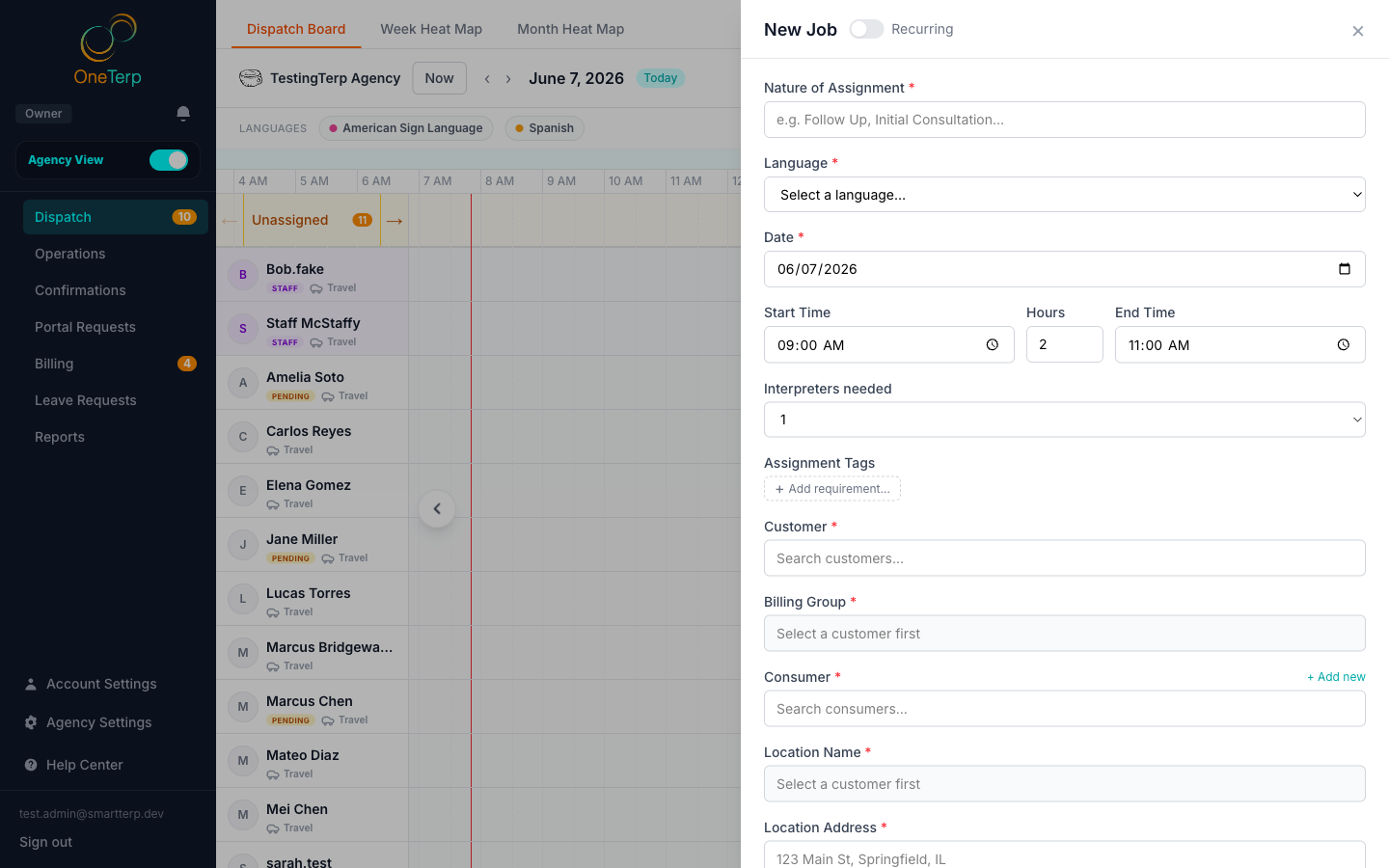
Use the assignment form to book a single interpreting job with customer, consumer, language, time, location, and team slots.
The + Assignment form is where you build a single interpreting job. Pick the customer first so the related locations, requestors, and billing groups load, then fill in the rest.
Step by step
- 1On the dispatch board, click "+ Assignment" (or click an existing job chip and choose Edit).
- 2Select the customer, this loads that customer's locations, requestors, and billing groups, with a "Default" billing group auto-selected for new jobs.
- 3Choose the consumer (the Deaf/LEP individual); selecting one auto-fills the language. Watch for the star (preferred) and do-not-send markers in the dropdown.
- 4Read the amber standing-instruction banner if one appears under the consumer picker. That is what your agency has pinned about working with this person.
- 5Serve more than one consumer on the same job with "Add another consumer", the primary consumer still drives the language and billing; the others are listed for reference.
- 6Set the language, date, start time, and end time, then pick the location and requestor.
- 7Set a preferred interpreter gender if the consumer has one, it pre-fills from the consumer, and assigning a mismatched interpreter shows a warning but never blocks you.
- 8Set the number of interpreters needed, each one becomes a separate slot you can fill on the board.
- 9Under "Assignment Tags", add the qualifications this job needs. Tags the customer requires are added for you when you pick the customer, and you can take one off for a single job.
- 10Tick "Require these tags" if the qualifications are mandatory rather than a preference. Without it, tags only lift matching interpreters in best fit.
- 11Add an onsite contact, notes, or file attachments if needed, then click Save.
- 12To create a new consumer, requestor, or location on the fly, use the inline "+ Add new" option in that field, it saves with the job.
Screenshots
Tips
- If the end time is earlier than the start time, the job automatically rolls to the next day (handy for jobs that cross midnight).
- Required-qualification gaps show as warnings, not blocks, you can still save.
- Attachments are shared per job: everyone assigned, across all slots and splits, sees one file list, and assigned interpreters can both open and upload files (great for scripts and prep docs). Deleting is agency-only, and interpreters with a pending offer can't see files until they accept.
- You can also view and upload attachments from the job's detail popup on the dispatch board, no need to open Edit.
- On a job that is part of a recurring series, adding or removing a file asks whether it applies to just that date, this and future, or all occurrences.
- File attachments are capped at 20 MB each.
- An interpreter you offer the job to sees only the basics until they accept: customer, type of job, language, time, and the location at your offer setting. Your notes, the requestor, the onsite contact, location notes, the consumer, and files reach them once they accept.
- A do-not-send warning now carries the reason your agency recorded, so you can tell a real conflict from an old entry without leaving the form.
- If the consumer has communication needs tagged on their record, they travel with the job and show on the assigned interpreter's card. They are information for the interpreter, not a filter, so they never narrow who you can assign.
- Need one job covered by two interpreters at different times? See Split a job between interpreters.
- Editing a job that's part of a recurring series opens a scope dialog asking whether to change just this one, this and future, or all occurrences.
- Anything worth a second look is gathered into one confirmation before the job saves: conflicts, availability problems, tight travel, and do-not-send flags all appear in a single list rather than as a run of separate pop-ups.
- A new job starts on whichever day the board is showing, not today, so booking several jobs for the same future day does not mean resetting the date each time.
- Booking a date that has already passed warns you and then lets you continue, since backfilling a job you forgot to enter is a real thing people do. The warning is firmer for a recurring series.
Related articles
- Set up recurring assignments →
- Use the dispatch board →
- Require a tag on a job, and filter the board by tags →
- Split a job between interpreters →
- Cancel an assignment and track cancellations →
- Manage customers, locations, and contacts →
- Manage consumers →
- Set up billing groups and requestors →
- Turn on readable job numbers →
Still need help?
If this article didn't solve it, submit a ticket and the OneTerp team will follow up.
Contact support