For interpreters🗓️ Your Work
View your upcoming assignments
See all your confirmed jobs, pending offers, and self-logged work in one place.
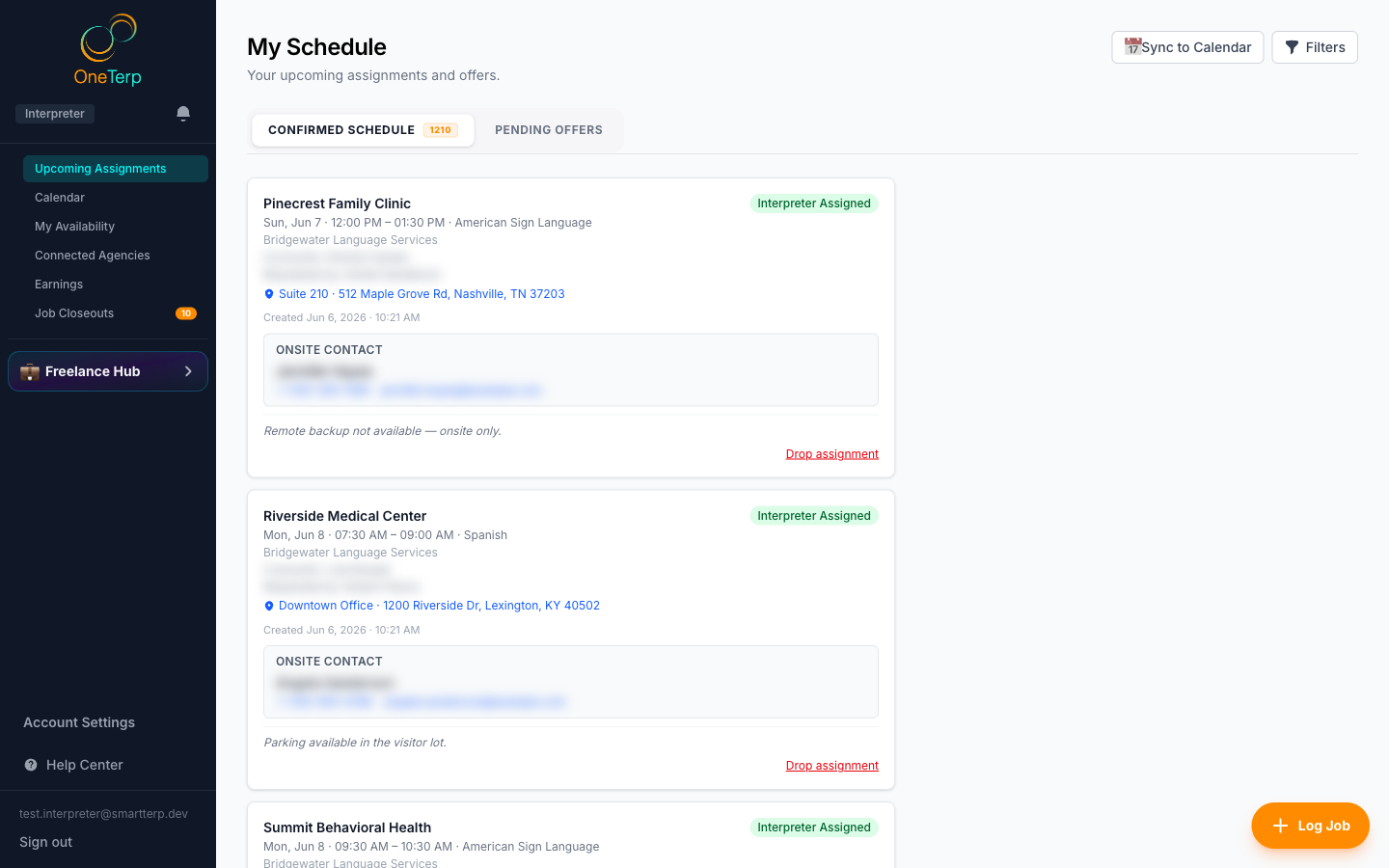
My Assignments gathers confirmed assignments and pending offers from every connected agency, plus any external jobs you logged yourself, as easy-to-scan cards. For a quick ranked list of what needs you next, jobs, offers, closeouts and time off together, use Up next on your Home page.
Step by step
- 1Click "My Assignments" in the sidebar.
- 2Use the "Confirmed Schedule" and "Pending Offers" tabs (each shows a count badge) to switch between booked jobs and offers awaiting your response.
- 3Click a confirmed job's card to see its full details: service type, date and time, location, and consumer. An offer card does not open; you accept or decline it right on the card.
- 4Use the Filters button to narrow the list by agency, language, or other criteria.
- 5Click "Sync to Calendar" to add your schedule to a calendar app.
- 6Switch the view toggle from List to Month, Week, or Day to see the same jobs laid out on a calendar.
Screenshots
Tips
- Past jobs drop off the list automatically, so the view always shows what is coming up.
- The "Confirmed Schedule" count is only jobs you have accepted. An offer you have been sent but have not answered yet sits under "Pending Offers" until you accept it.
- On a team job, an interpreter who has been offered a slot but has not accepted yet shows as still pending rather than as a confirmed teammate, so you can tell who is actually coming.
- Each assignment card has an Attachments section, open prep files the agency shared (scripts, agendas) or add your own for the whole team, any time before closeout.
- A teal "Communication needs" box on the card means the agency has recorded how this consumer communicates, for example that they need tactile signing or a Deaf interpreter. Read it before you go. It appears once you have accepted, alongside the consumer's name.
- If the agency has set a Field Support Line, the assignment card and detail popup show that phone number, call it when something goes wrong on the job (no-show contact, access issues, last-minute changes).
- External jobs you logged yourself show a purple "Freelance" badge with their own edit, delete, and close-out actions, they never show accept or offer buttons.
- If something fails to load, a Retry button appears, tap it to refresh.
- Premium subscribers see travel rows between jobs, showing the real drive time and distance from the previous job, across every agency plus your freelance work. If a gap is tighter than your comfort margin, it warns you. Set that margin in Account Settings, on the Notifications tab, under Travel Comfort Margin.
Related articles
Still need help?
If this article didn't solve it, submit a ticket and the OneTerp team will follow up.
Contact support