For interpreters🗓️ Your Work
Clock in and out (W-2 staff)
W-2 staff clock in and out per agency for payroll, with a live timer and punch history.
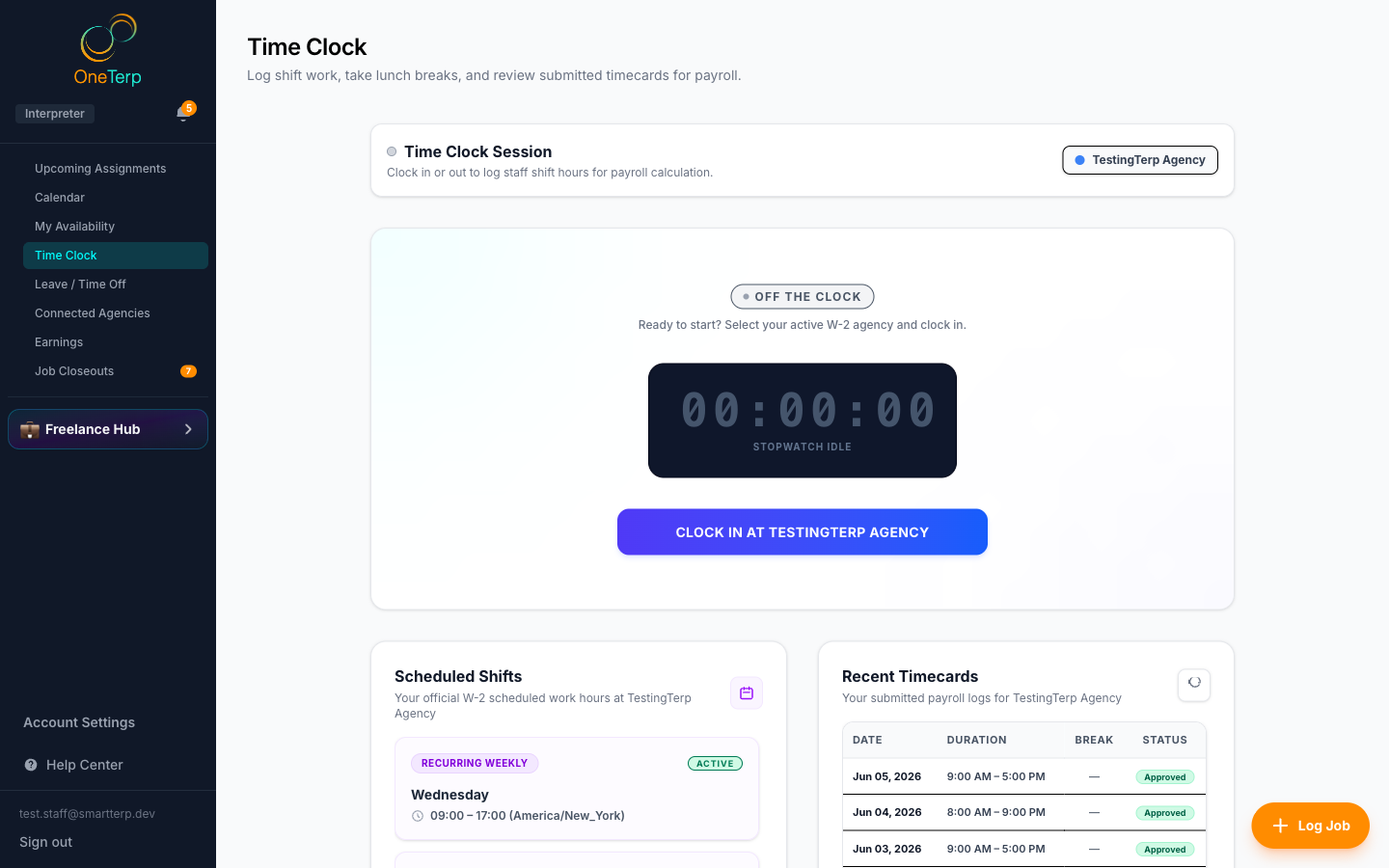
If you are a W-2 employee at an agency, use the Time Clock to record your work hours for payroll. It shows a live stopwatch, an unpaid-break selector, your scheduled shifts, and past punches. It is in the Staff HQ tab on your Home page, next to Scheduled Shifts and Leave / Time Off.
Step by step
- 1Click "Home" in the sidebar, open the "Staff HQ" tab, then choose "Time Clock".
- 2Select the agency you are working for.
- 3Click "Clock in at" followed by your agency's name. A live HH:MM:SS timer starts counting up.
- 4When you finish, choose any unpaid break amount, then click "Clock Out & Submit Punch".
- 5Your punch is sent to a manager to approve or reject; review past entries in your punch history.
Screenshots
Tips
- Forgot to clock in or out? OneTerp checks your scheduled shifts. If you haven't clocked in 10 minutes after a shift starts, or you're still clocked in 15 minutes after it ends, a banner appears at the top of your Home page and you get a notification (a push on your phone, if you use the app). If it still isn't fixed an hour later, you get one more reminder. Approved time off that covers the shift turns these off.
- The Staff HQ tab only appears if you are a W-2 employee at an agency. If an agency buys blocks of your time as a contractor, you get a "Bought Time HQ" tab with Scheduled Shifts only.
- You cannot switch agencies while you are clocked in.
- Forgot to punch? Click "Forgot to clock in?" to write in the time you actually started, or "Forgot to clock out?" while your clock is running to write in when you finished. Add a note for your approver and submit it for approval.
- If you are already clocked in, clicking Clock In again just returns your active session, you will not be double-clocked.
- Your scheduled shifts are listed alongside your punches, with paid-lunch net hours shown.
- Office staff who are set up as W-2 employees get the same tools, with Time Clock, Scheduled Shifts, and Leave / Time Off. They are reached from "Staff HQ" in the agency sidebar.
- If you have two pay rates, one for office work and one for interpreting, you do not choose between them when you punch. Your agency's dispatch record decides which hours were interpreting.
Related articles
Still need help?
If this article didn't solve it, submit a ticket and the OneTerp team will follow up.
Contact support