For everyone🚀 Getting Started
Log in and reset your password
Sign in to your account and recover access if you forget your password.
Step by step
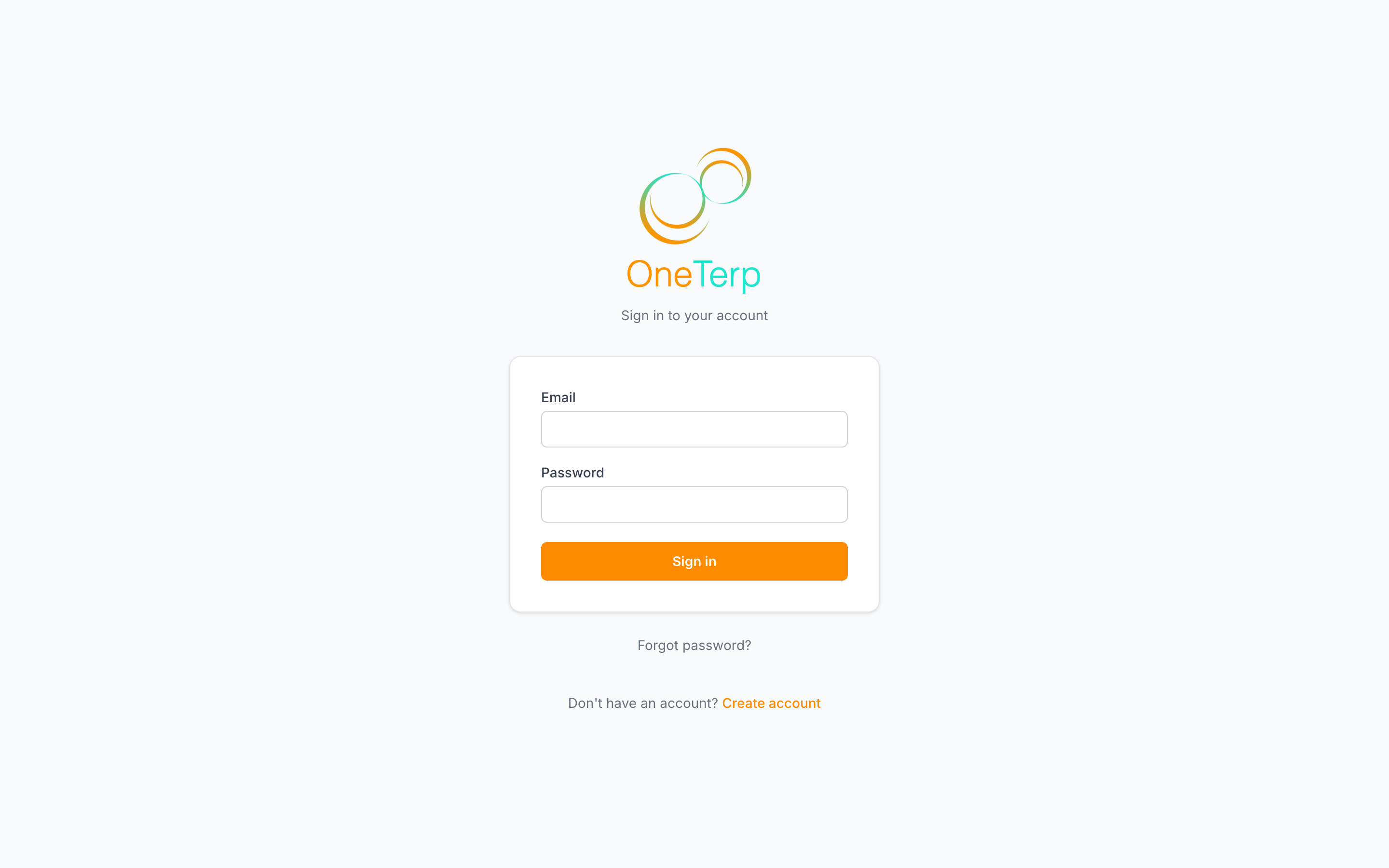
- 1Open the login page and enter the email and password you signed up with, or click "Continue with Google" or "Continue with Apple" if you signed up with one of those.
- 2Click "Sign in" to enter your dashboard.
- 3If you forgot your password, choose "Forgot password?" on the login page and enter your email.
- 4Check your inbox for a reset link and follow it to set a new password.
- 5Return to the login page and sign in with your new password.
Screenshots
Tips
- Google and Apple sign-in take you straight to your dashboard; if it's your first time, you'll pick your role on the onboarding screen first.
- Always sign in the same way you signed up. If you created your account with Apple, use Continue with Apple each time.
- Password-reset links are sent from your agency's email domain and expire after a short window, request a fresh one if it's been a while.
- For security, the reset screen never tells you whether an email is registered; you'll always see the same confirmation.
Still need help?
If this article didn't solve it, submit a ticket and the OneTerp team will follow up.
Contact support