For agencies💵 Billing & Payouts
Build and customize a customer invoice
Select a customer's approved jobs and generate a finalized, fully customizable invoice with a live preview that matches the printed result.
The invoice builder turns approved jobs into a branded invoice. You can set the template, font, colors, add custom line items, and see exactly how it will print before you finalize.
Step by step
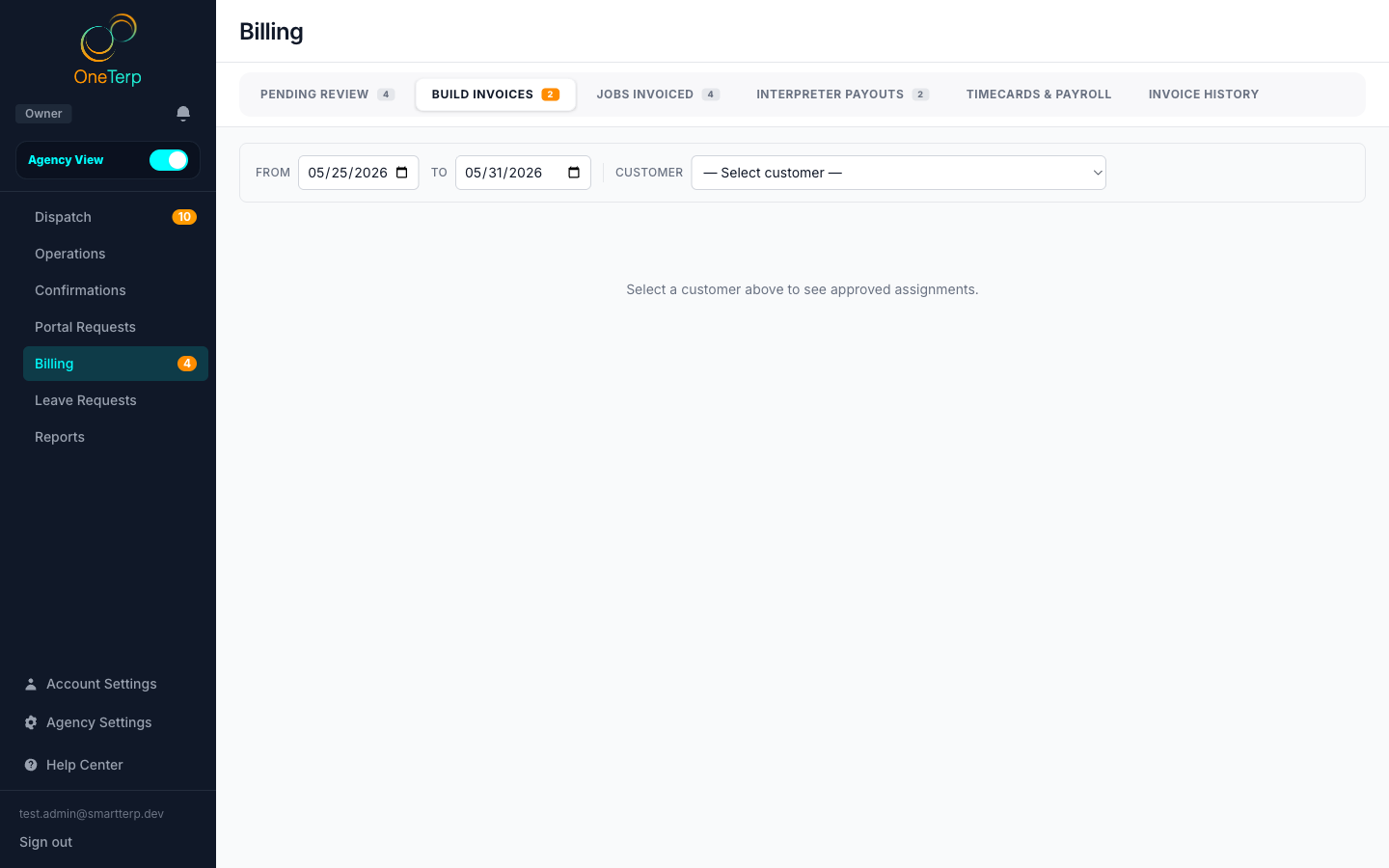
- 1Open Billing and go to the Build Invoices tab.
- 2Pick a customer to see their approved, ready-to-invoice jobs, grouped by billing group.
- 3Tick the jobs you want in one billing group and click "Build Invoice" on that group. An invoice always covers exactly one billing group.
- 4Review the auto-generated line items (a service line per job, plus separate travel-time and mileage lines when those apply, and any flat charges the jobs triggered).
- 5Adjust the design (template, font, accent color, subtitle, Tax ID, and logo/contact/terms toggles), add any custom line items, and edit the memo.
- 6Use the live preview to confirm the invoice looks right; it renders with the exact same layout used for print and PDF.
- 7Click "Finalize & Save" to save the invoice with its sequential number and mark the included jobs as invoiced.
- 8Email it from the invoice, and the PDF goes out attached to the message. Customers no longer get a link they have to log in to open.
- 9The invoice waits on the Invoices tab, "Ready" sub-tab, where it can still be edited. Email it or sync it to QuickBooks there. "Sync all to QBO" sends every unsynced invoice in one click.
- 10Click "Done" once it has gone out ("Mark all Done" does them all). Done locks the invoice, moves it to Sent / Synced, and starts overdue reminders. It does not mean paid: record payments on the Sent / Synced tab.
Screenshots
Tips
- Charges are calculated by the differential billing engine, which splits each job into time segments and applies the highest matching rate, then adds travel, mileage, and the minimum billing duration.
- New invoices start from your saved house style; if you reopen an existing invoice, its own saved design is kept.
- Travel and mileage lines only appear when those amounts are greater than zero.
- Every job line carries the assignment time it was worked, so a customer with several jobs on one day can tell them apart.
- A flat charge can either replace a job's hourly service charge or sit on top of it, depending on how you set it up. See the flat charges article.
- Click Save as agency default in the builder to make the current design your house style for future invoices.
- The line-item preview is built from the same column list as the printed invoice, so what you see in the builder is what prints.
- You can add a Job # column if you have turned job numbers on. It is the one invoice column that starts switched off.
- An invoice that never had its own subtitle now prints the standard one, "Professional Interpreting Services". Set a subtitle in your house style if you want different wording.
- Edit the wording of the email that carries the invoice in Settings, Billing & Subscription, then Invoice Email. You can save it once and it applies to every invoice you send.
Related articles
Still need help?
If this article didn't solve it, submit a ticket and the OneTerp team will follow up.
Contact support